Suggest fixes
A suggestion is a proposed fix. It waits in the Fix Queue until you accept it, so asking for one never changes your site.
Asking for suggestions
Section titled “Asking for suggestions”-
Set up an AI provider and your key in Options, if you haven’t yet. See Choosing a provider.
-
In the Fix Queue, tick the problems you want suggestions for. The box in the header row ticks every problem on the page.
-
Press Suggest Fixes.
-
Wait for the message, such as 8 suggestions are ready to review.
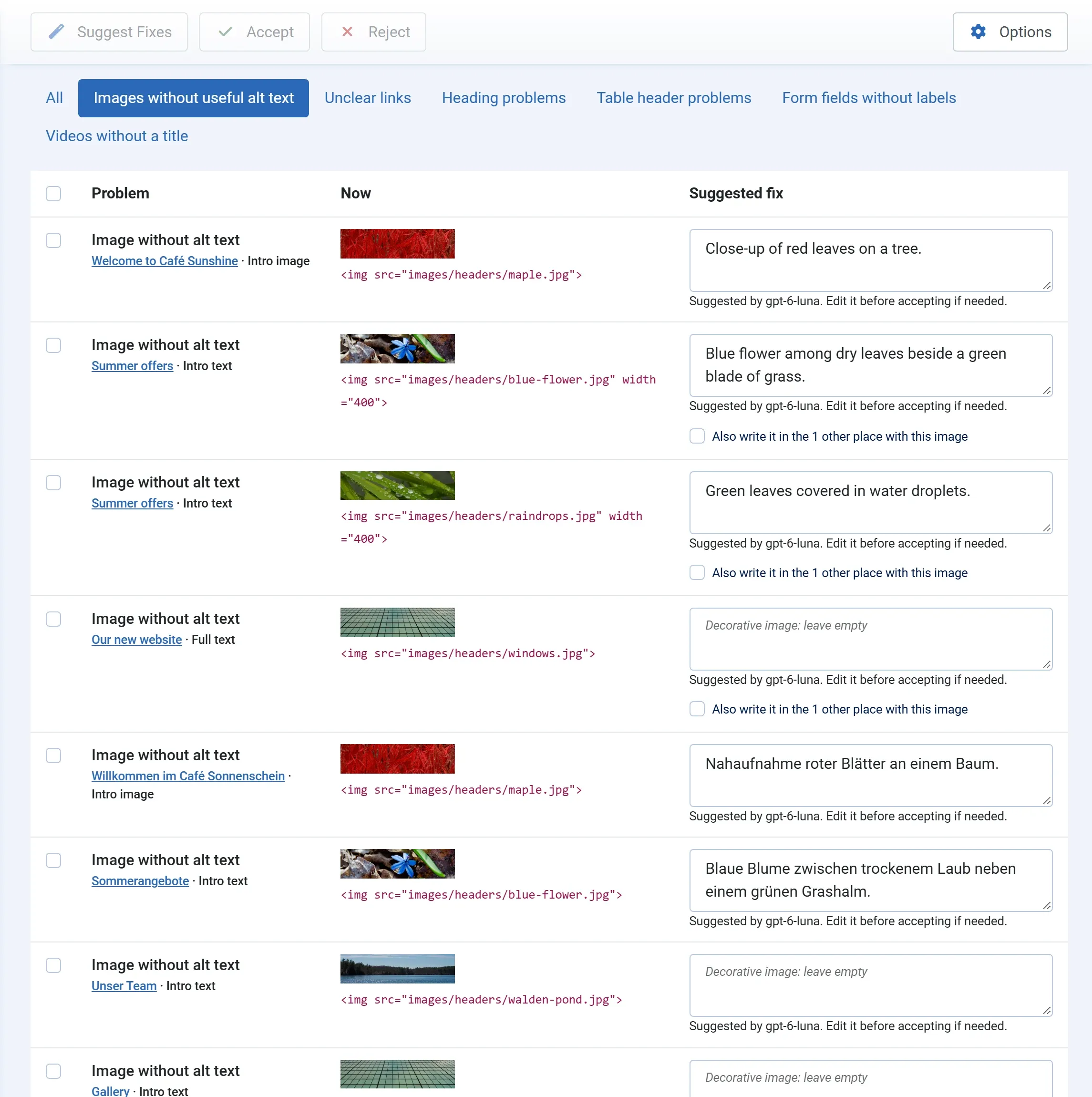
The suggestion appears in the Suggested fix box, with the name of the AI model that wrote it. Read it, change it if it is not quite right, then accept it.
To have every problem get a suggestion without ticking them, use Suggest for all (Pro), or let the fixes be suggested on their own every night (Pro).
Images
Section titled “Images”The AI looks at the image and writes alt text that says what it shows, in under 125 characters. It is also given the title of the article or module and the text near the image, so it can tell what matters, but it describes only what is in the image. If the image holds text a visitor needs, such as a poster, the alt text includes that text.
The alt text is written in the language of the article. An article in German gets German alt text; an article set to All languages gets alt text in the site’s default language.
Decorative images
Section titled “Decorative images”Some images add nothing, such as a pattern or a divider. A screen reader should skip them, which is what an empty alt text (alt="") tells it. When the AI thinks an image is decorative, the box stays empty and shows Decorative image: leave empty. Accept it as it is to mark the image as decorative, or type alt text if the image does matter.
Images the AI cannot read
Section titled “Images the AI cannot read”The image must be a JPEG, PNG, GIF or WebP file of up to 5 MB, on your site or at a public web address. If it is not, the queue says why, for example Image is larger than 5 MB. Write the alt text yourself in the box.
For a link without text or with unclear text, such as “click here”, “read more” or “weiterlesen”, the AI is given the link, where it goes and the text around it, and writes link text that says where the link goes. Only the link’s text changes; the address stays the same.
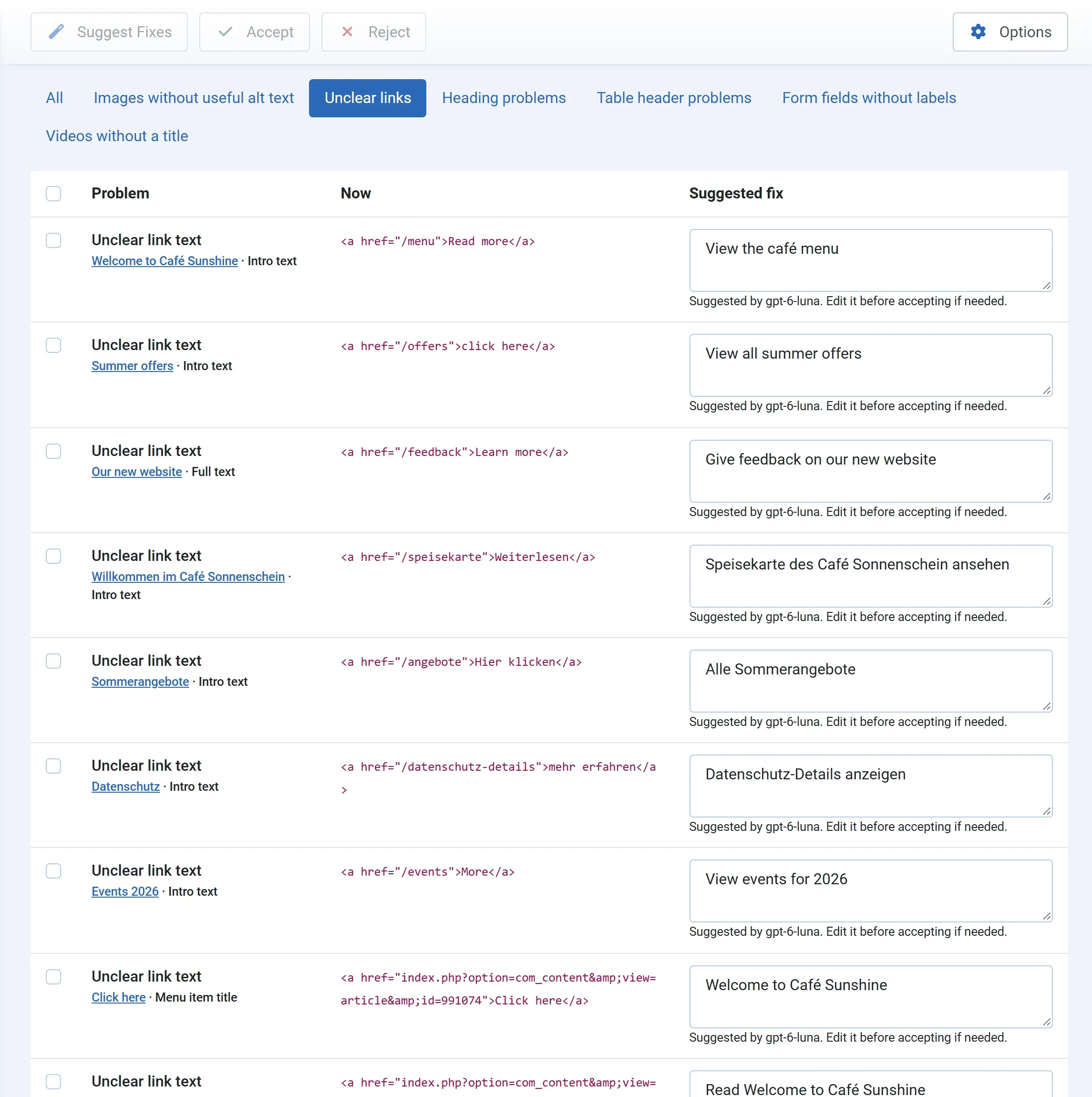
When you accept, new link text that is still unclear, such as “click here”, is refused with a message, and nothing is written.
Menu item titles
Section titled “Menu item titles”A menu item called “Click here” or “Mehr” is an unclear link on every page. The AI suggests a new title from the menu it is in and the page it opens. Accepting it changes the menu item’s title.
Videos
Section titled “Videos”Videos from YouTube and Vimeo get their title from the video service, with no AI and no key. See Video titles.
Headings, tables and form labels (Pro)
Section titled “Headings, tables and form labels (Pro)”In Pro, these get suggestions too, mostly worked out without AI. See Headings, tables and form labels.
When no suggestion is made
Section titled “When no suggestion is made”| Message | What to do |
|---|---|
| To get AI suggestions, choose an AI provider and add your key in Options. | Set up AI in Options. You can still type fixes yourself. |
| This month’s AI spend cap is reached… | Raise the cap in Options, or wait for next month. See Costs and the spend cap. |
| All 50 AI suggestions for this month have been made… | The free version’s monthly limit. See The free monthly limit. |
More messages are in Troubleshooting.