Installation
Requirements
Section titled “Requirements”| Requirement | Needed |
|---|---|
| Joomla | 5.4 or later, or Joomla 6 |
| PHP | 8.1 or later |
| AI key | Not needed to install or scan. Needed only for AI suggestions. |
The installer checks the Joomla and PHP versions first. If either is too old, it stops and says which one, and nothing is installed.
Installing the package
Section titled “Installing the package”-
Download the free package,
pkg_jsaiaccessibility-<version>.zip, from the JS Accessibility Fixer page on joomsky.com or from the Joomla Extensions Directory. For Pro, see Upgrade to Pro. -
In your Joomla administrator, go to System → Install → Extensions.
-
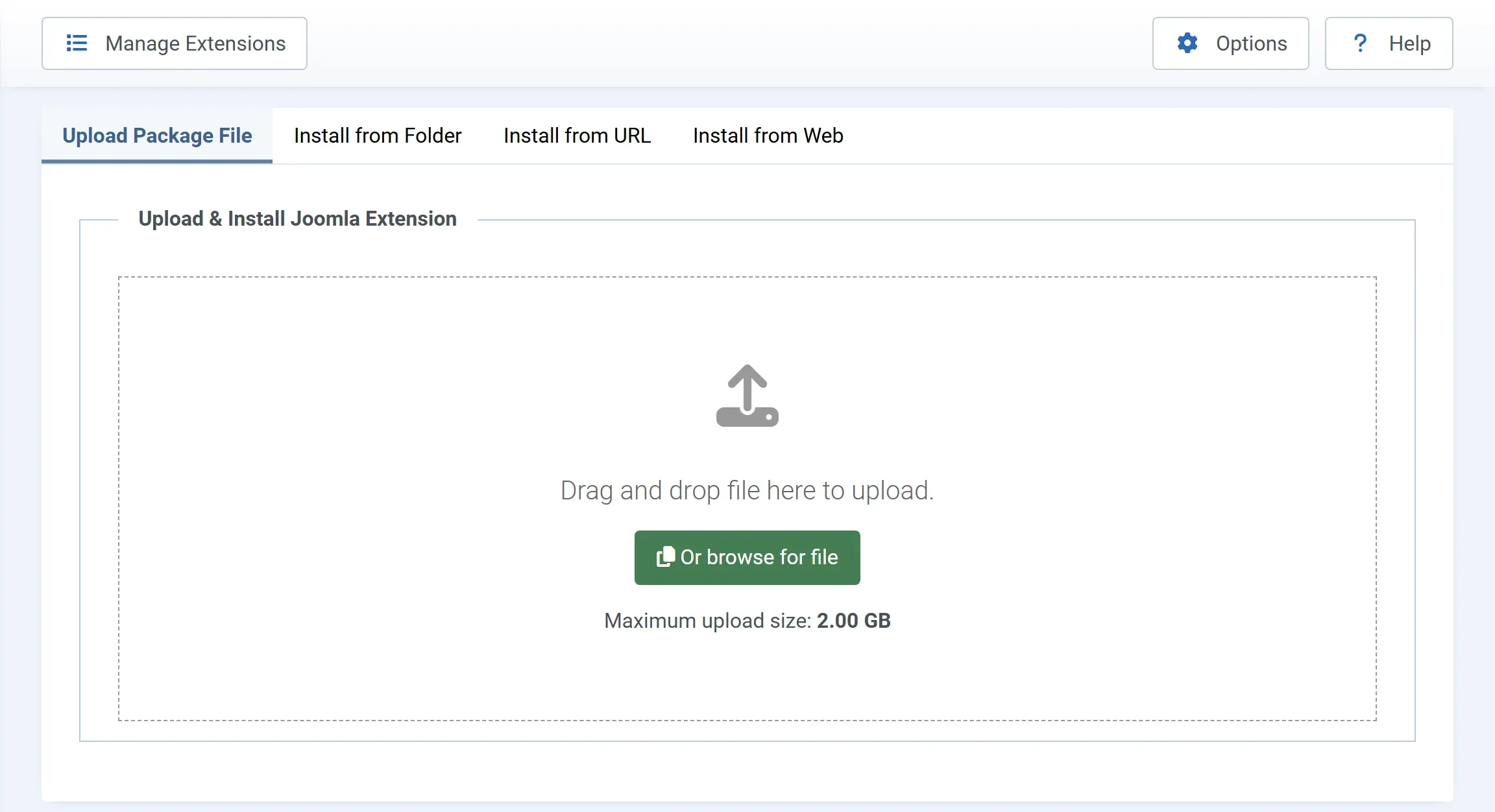
On the Upload Package File tab, drop the zip on the box, or click Or browse for file and pick it.
-
Wait for the message that the package was installed, then go to Components → JS Accessibility Fixer.
There is no setup wizard. Open the dashboard and press Scan my site. See Your first scan.
What the install sets up
Section titled “What the install sets up”| Extension | What it is for |
|---|---|
| JS Accessibility Fixer (component) | The dashboard, Fix Queue, Pages and History screens, and the Options |
| Content - JS Accessibility Fixer (plugin) | Check on save, and the Suggest alt text with AI button in the article editor |
| Task - JS Accessibility Fixer (plugin, Pro) | The monthly scan and the nightly suggestions, through Joomla’s Scheduled Tasks |
| Installer - JS Accessibility Fixer (plugin, Pro) | Pro updates through Joomla’s Update screen, with your licence key |
The install turns on its plugins for you. It also adds its own tables to your database, for scans, problems, fixes, page checks and settings. It does not change your content, your template or any other extension.
The component’s menu under Components → JS Accessibility Fixer has Dashboard, Fix Queue, Pages and History. Pro adds Statement, Client report and Licence.
Updating
Section titled “Updating”Updates come through Joomla’s own Update screen, like any other extension. See Updates.
Uninstalling
Section titled “Uninstalling”Uninstall the package under System → Manage → Extensions. This removes the component, its plugins and its tables, with the scan results and the History. Fixes you accepted stay in your content. See Uninstalling.