Choosing a provider
JS Accessibility Fixer works with three AI providers. You choose one, add your own key, and pay the provider directly. Scanning works without any of them.
| Provider | Default model | A larger model, for harder images |
|---|---|---|
| Anthropic Claude | claude-haiku-5-5 |
claude-sonnet-5-5 |
| Google Gemini | gemini-3.5-flash-lite |
gemini-3.8-flash |
| OpenAI | gpt-6-luna |
gpt-6.1-terra |
The default models are the providers’ low-cost ones that read images well. They are good enough for most alt text and link text, and cost a fraction of a cent per suggestion.
Which one to choose
Section titled “Which one to choose”All three write good alt text and link text in English and German. If you already have an account and a key with one of them, use that one. If not, pick the one whose terms suit you; you can switch at any time.
Setting it up
Section titled “Setting it up”-
Get an API key from the provider. See Getting an API key.
-
Go to Components → JS Accessibility Fixer and press Options in the toolbar.
-
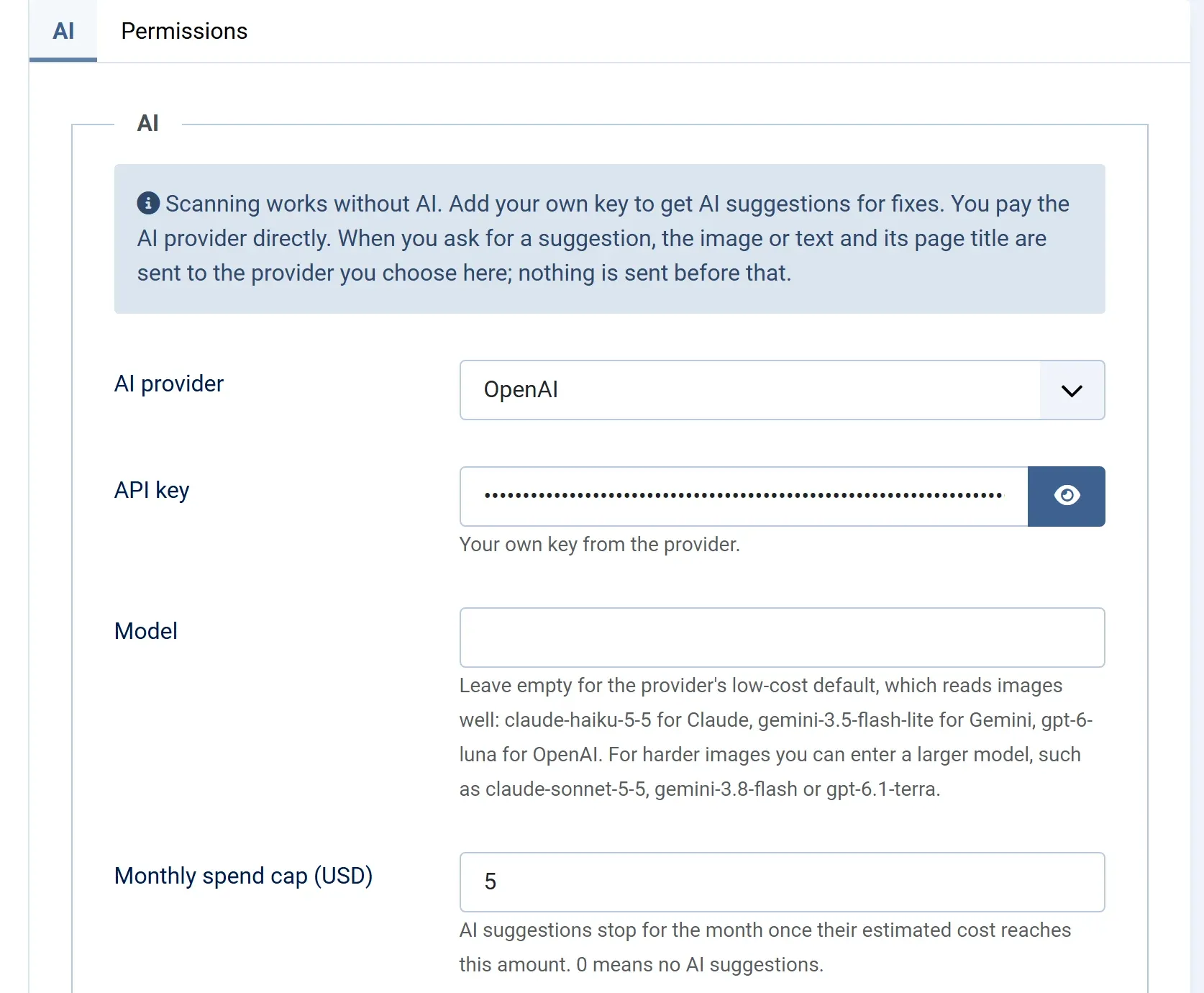
On the AI tab, choose the AI provider.
-
Paste your API key.
-
Leave Model empty for the default model, or enter another model name from the table above.
-
Check the Monthly spend cap (USD). It is $5 to start with. See Costs and the spend cap.
-
Press Save & Close.
To try it, open the Fix Queue, tick one image and press Suggest Fixes.
Switching providers
Section titled “Switching providers”Choose another provider in Options, paste its key, and save. Suggestions already waiting in the queue stay, with the name of the model that made them. New suggestions come from the new provider.
To stop using AI, choose None (scan only). Scanning, video titles and fixes you type yourself keep working.
The model field
Section titled “The model field”Leave it empty unless you have a reason. A larger model can describe complex images, such as charts, better, but costs more per suggestion. The model name must be one your provider offers to your key.