
Payment history
Every time an employer or job seeker gets a package, by buying it, by picking a free one, or by being given one, JS Jobs records it as a purchase. Two screens under Payments list them:
- Payments → Employer History (headed Employer Payment History)
- Payments → Job Seeker History (headed Job Seeker Payment History)
They work the same way. This is also where you confirm payments that the payment gateway didn’t confirm by itself, such as bank transfers.
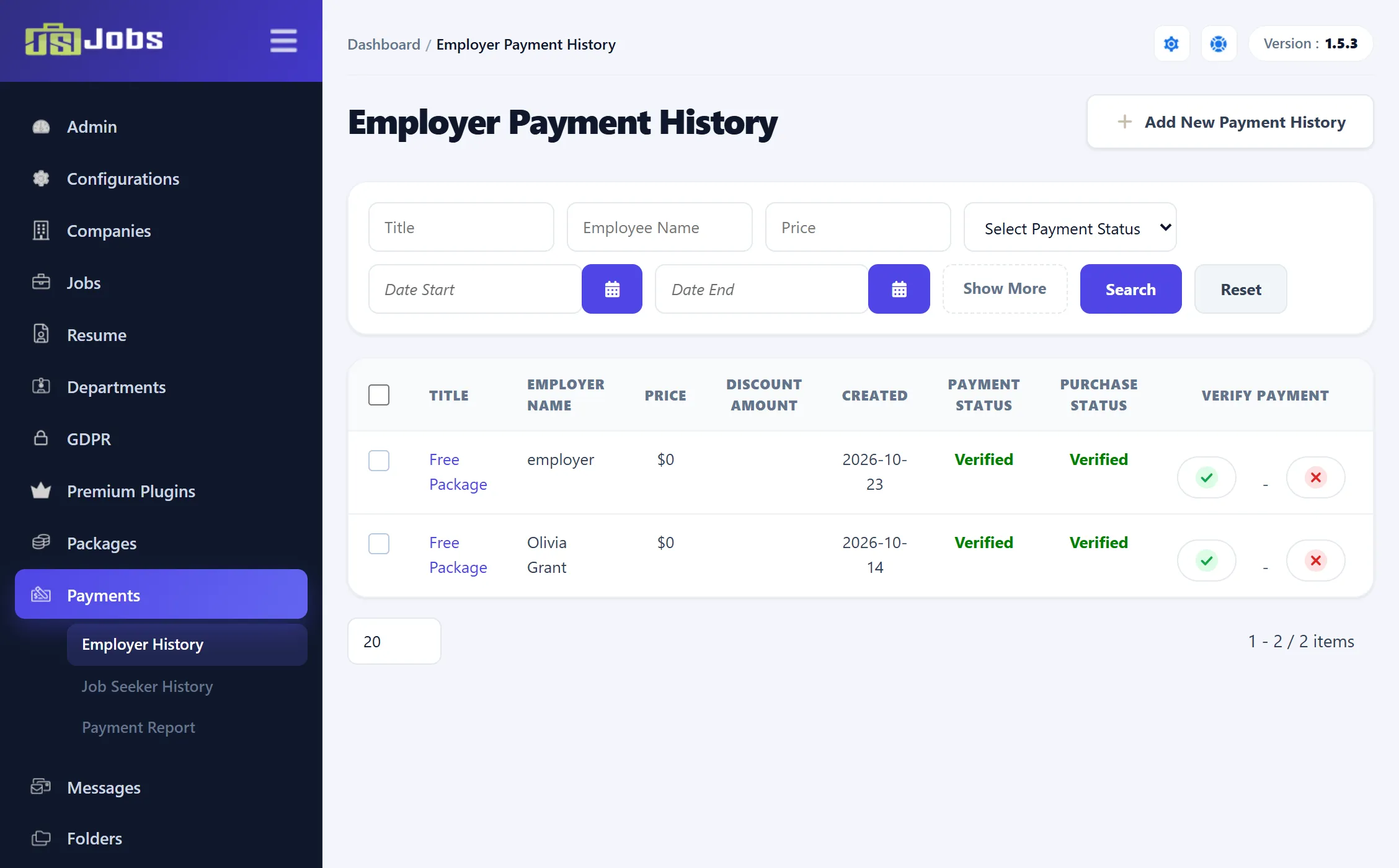
The list
Section titled “The list”Newest purchases come first.
| Column | What it shows |
|---|---|
| Title | The package bought. Click it to open the purchase’s details. |
| Employer Name or Job Seeker Name | The buyer’s name as in Joomla’s Users. |
| Price | The package price at the time of purchase. |
| Discount Amount | The discount given, if any. |
| Created | The day of purchase. The package’s days count from here. |
| Payment Status | Verified once the payment has been confirmed, by the gateway or by you. Otherwise Not Verified. |
| Purchase Status | Verified once the purchase is approved. Otherwise Not Verified. |
| Verify Payment | A tick to verify the purchase and a cross to reject it. |
A purchase gives the buyer their allowances only when both statuses are Verified (and the package hasn’t expired). See How packages work.
Filtering
Section titled “Filtering”Type in Title, Employee Name or Price and click Search. Title and name match any part of the text; so does price, so 9 also finds 19 and 49. Click Show More for three more filters:
- a payment status list (Verified or Not Verified), and
- Date Start and Date End, which keep purchases made on or between those days.
Reset clears them all. The two history screens remember the same filter values, so a filter you set on one is still set when you open the other; the payment status choice is shared with the Payment Report as well.
How a purchase starts out
Section titled “How a purchase starts out”| How the package was taken | Payment Status | Purchase Status |
|---|---|---|
| Bought, paid package | Not Verified until the gateway confirms the payment | Verified |
| Free package picked by the user | Verified | Verified if the free package auto approve setting is Yes, otherwise Not Verified |
| Package auto-assigned on registration | Verified | Verified |
| Package you assign yourself | as for a bought or free package | see Assign a package |
When a gateway confirms a payment, it fills in the payer’s details and the date, and marks the payment verified. Gateways are set up under Payment Methods.
Verifying or rejecting a purchase
Section titled “Verifying or rejecting a purchase”-
Find the purchase in Employer History or Job Seeker History.
-
Check that the money has arrived, in your payment provider’s account or your bank.
-
In the Verify Payment column, click the tick to verify, or the cross to reject, and confirm with OK.
Verifying sets both Payment Status and Purchase Status to Verified; the buyer can use the package at once. Rejecting sets both to Not Verified and the package stops counting, even if it was in use.
You can change your mind later: clicking the tick on a rejected purchase verifies it again. No e-mail is sent to the buyer when you verify or reject.
Purchase details
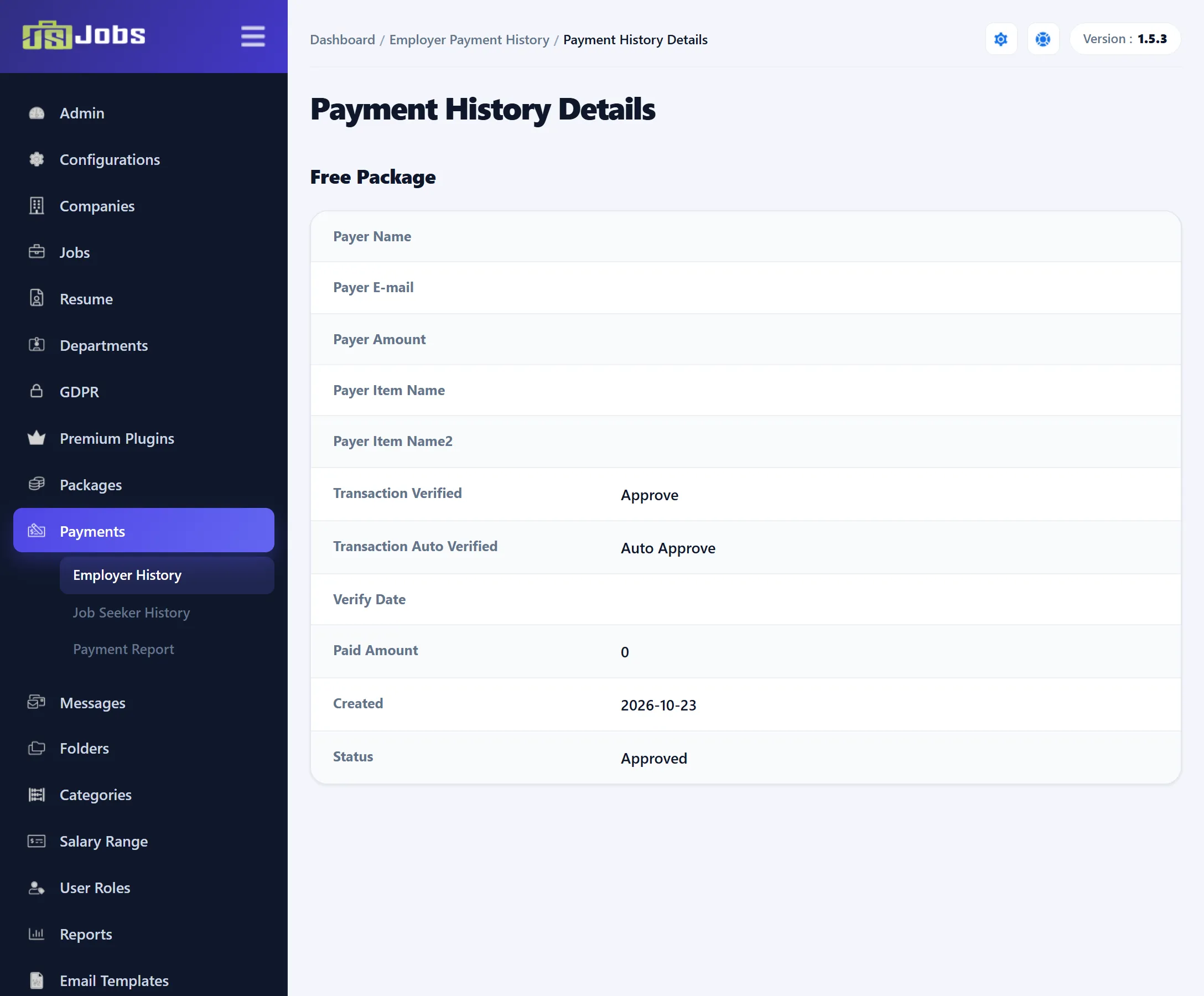
Section titled “Purchase details”Click a purchase’s title to open Payment History Details. The package name is at the top, then:
| Field | What it shows |
|---|---|
| Payer Name, Payer E-mail | As sent back by the payment gateway. Empty for free and assigned packages. |
| Payer Amount | The amount the gateway reported as paid. |
| Payer Item Name, Payer Item Name2 | The item names the gateway sent back. |
| Transaction Verified | Approve when the payment is verified, otherwise Reject. |
| Transaction Auto Verified | Auto Approve for free and auto-assigned packages, which are verified as soon as they are taken. Everything else shows Manual Approved, including payments a gateway confirmed. |
| Verify Date | When the gateway confirmed the payment. |
| Paid Amount | The price after any discount. |
| Created | The day of purchase. |
| Status | Approved or Rejected: the purchase status. |
Adding a purchase yourself
Section titled “Adding a purchase yourself”Add New Payment History (and New in the toolbar) opens a form for giving a package to a user without them buying it. See Assign a package.